
Now live: Capital AI, your financial sparring partner
Our ML-based transaction categorisation is the heart of the re:cap platform.
It keeps your bank transactions clean and structured with almost no manual work. And whenever you do make a correction, the model becomes smarter over time.
As soon as you connect your bank accounts to re:cap, our system imports your transactions and assigns them to meaningful categories, for example:
Behind this is a machine learning model that detects patterns in your payment data, such as the payment reference, counterparty, amount, and recurring payments.
Bank transaction categorisation is the foundation for almost everything in re:cap:
In short: For a cash-based view on your company, accurate transaction categorisation is key. Doing this by hand is unmanageable. That is why the ML model for bank transactions is the core of the entire platform.
Many competitors rely on rule-based systems. That means:
re:cap works differently:
Example: You change a wrongly assigned transaction from "Other expenses" to "Marketing". Our model learns from this and applies the new pattern to similar transactions. For example, all future payments to the same vendor.
The result:
Our customers: "You have the best automatic transaction categorization in the market."
Before the model can categorise your transactions, you need to connect your bank accounts:
1. Click on Data in the navigation menu. Then click on Add account to connect your bank accounts or payment providers.

2. Select your region.
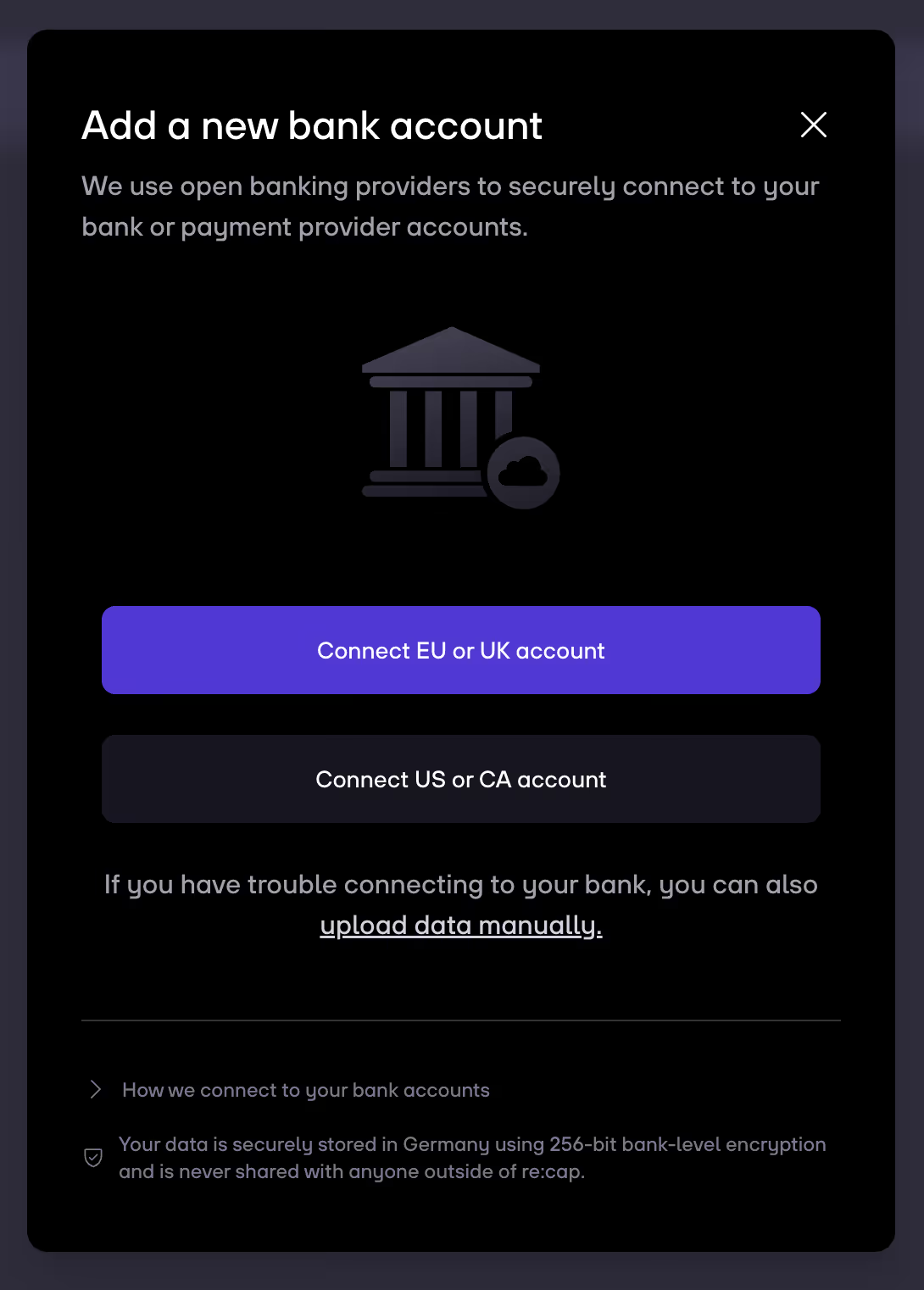
3. Select your bank and connect it via the open banking interface.

4. re:cap automatically syncs your transactions.
Once your bank is connected, the following happens automatically:
You do not need to configure anything.
The default categories are “zero work” and are set up to work well out of the box.
Our ML-model reaches 98.8% accuracy when categorising transactions. When something does not look right, you can correct it.
1. Go to Analysis in the navigation menu and then click on Cash positioning.
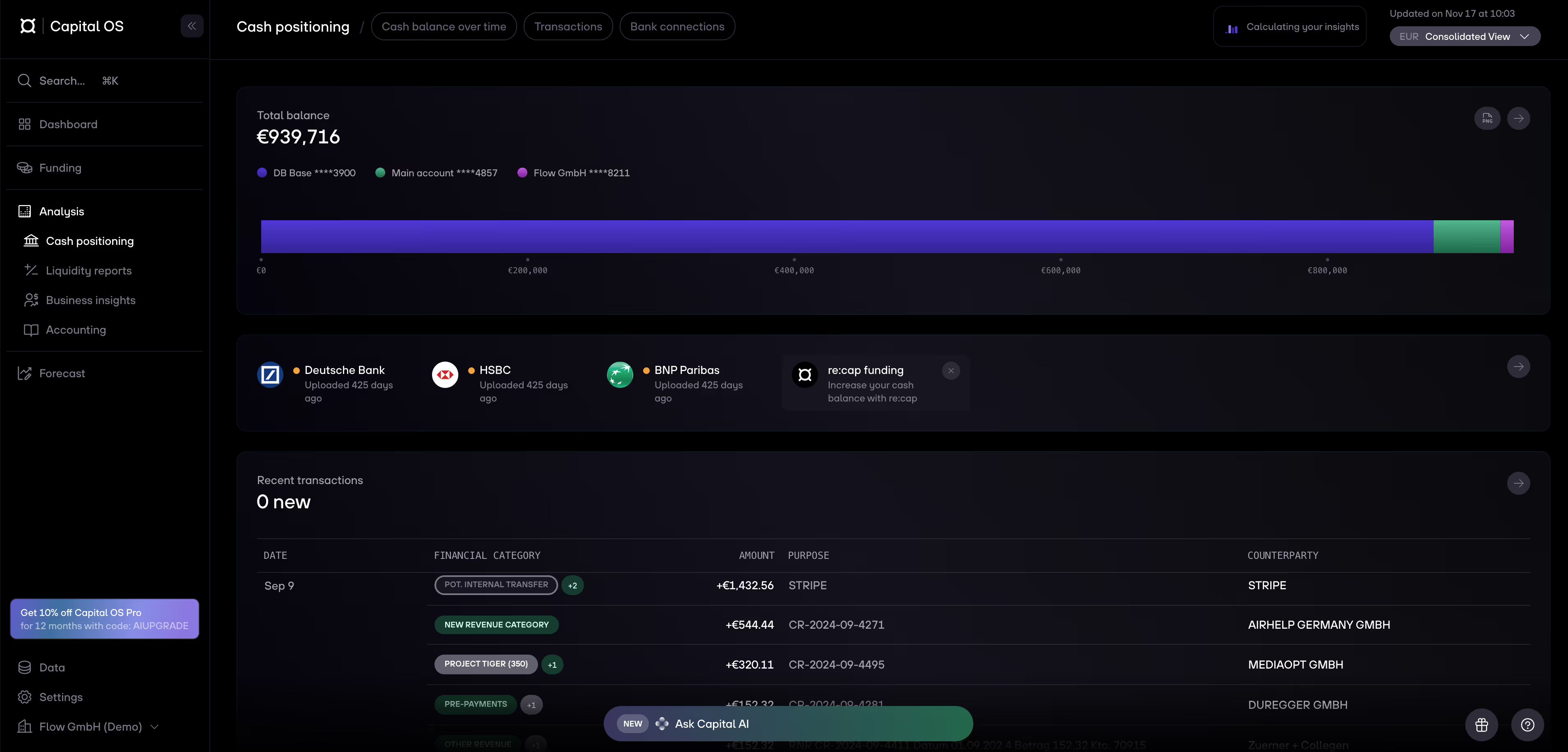
2. Click on Transactions.

3. Click on the transaction you want to change.

4. In the Category field, select a different category.

5. Click on Save changes, and they will be applied to all reports in re:cap.
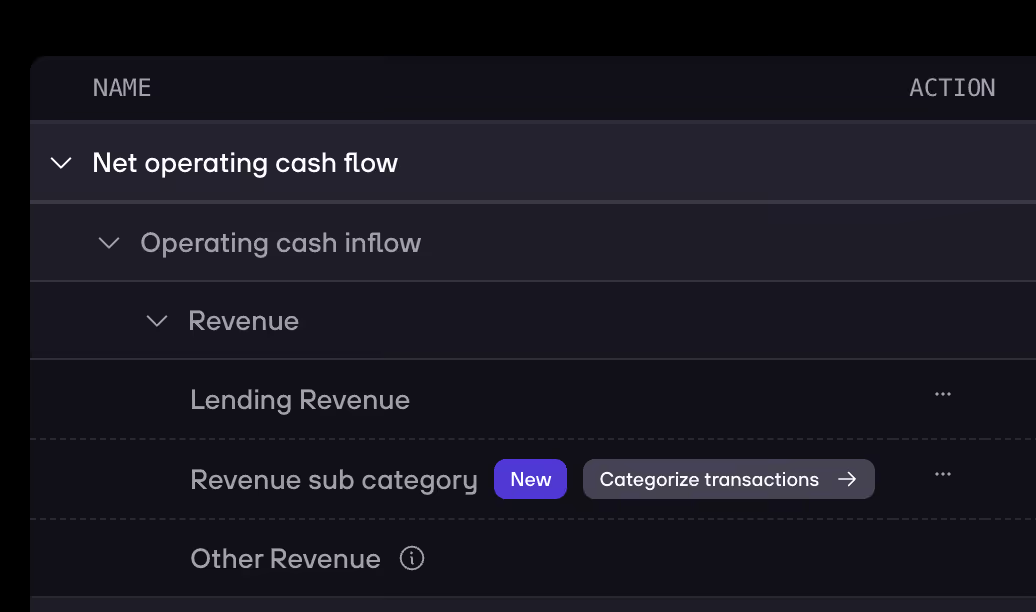
1. Click on Category in the transaction and choose Add category.

2. Select the top-level category and then give the category a new name.
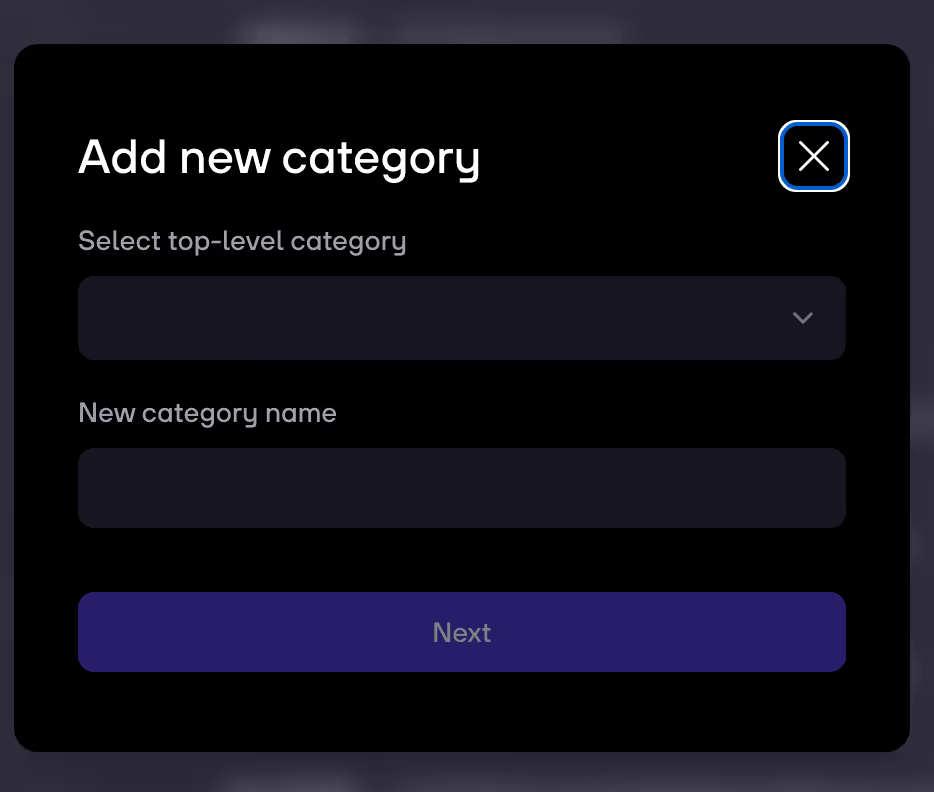
3. Click on Confirm.
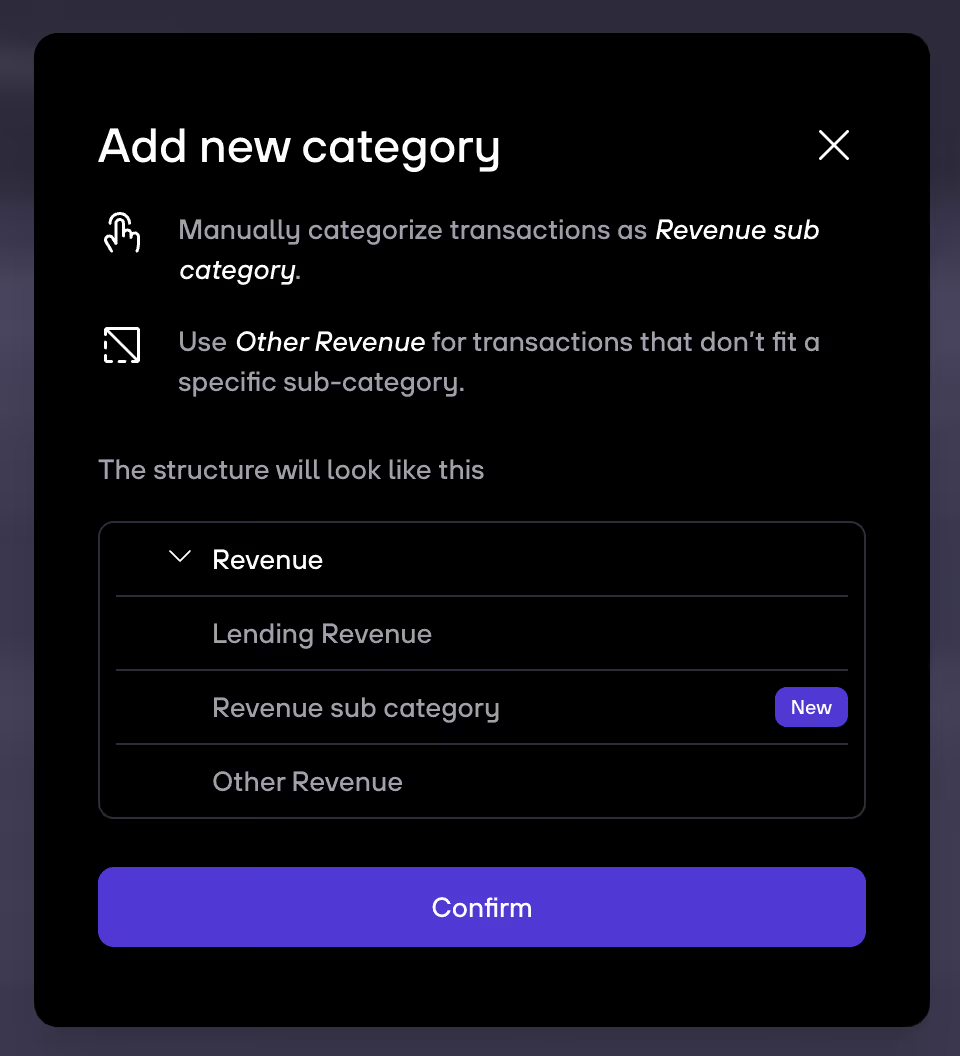
4. The just created category is now shown as "new".
Every correction helps the model learn. In practice it is often enough to reassign a few representative transactions:
Important:
Using the same technology, re:cap also supports automatic matching of invoices and bank transactions.
Forecasting open items:
Pre-accounting:
Curious about how our machine learning works? Read this article about Machine Learning at re:cap.


.gif)


