
Now live: Capital AI, your financial sparring partner
Connecting your bank account data is necessary to use re:cap. You can connect your accounts via manual upload or via open banking.
Certain banks might not support open banking API access. Additionally, especially EU banks, might not provide access to savings accounts. In those cases it is still possible to import the data into re:cap by following the steps below.
The steps may vary by bank, but generally follow this pattern:
1. Log into your online banking.
2. Locate the statement, normally found under a section called Accounts & documents, or at the bottom of your transaction page.
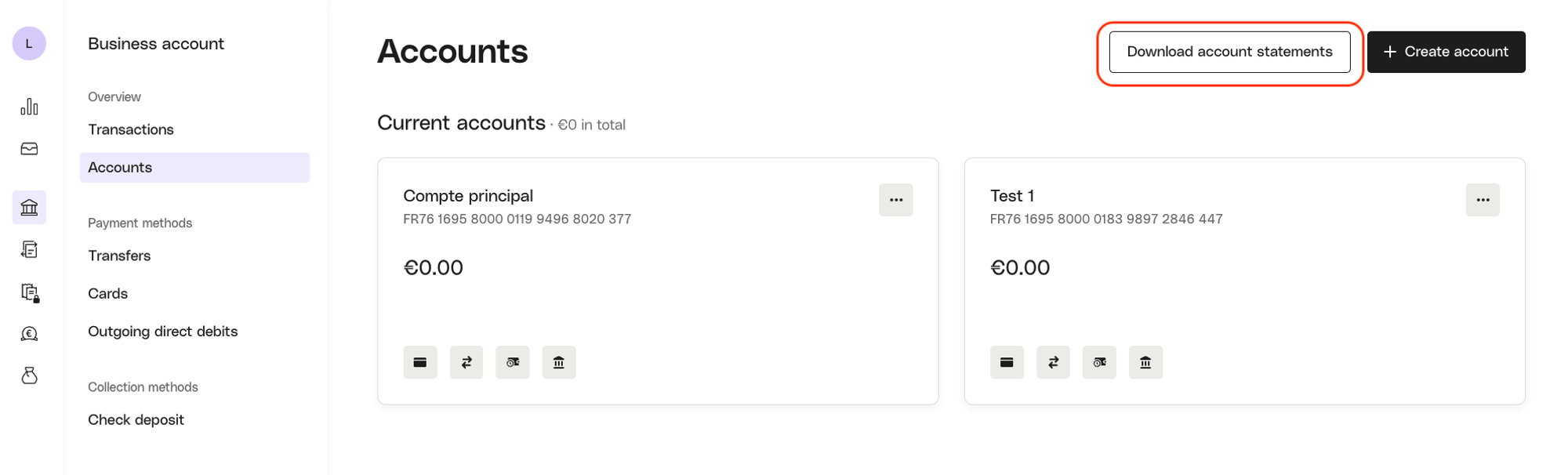
3. Download the statement of balances (in XLS/CSV format).
These are the fields required:
The file should look something like this:

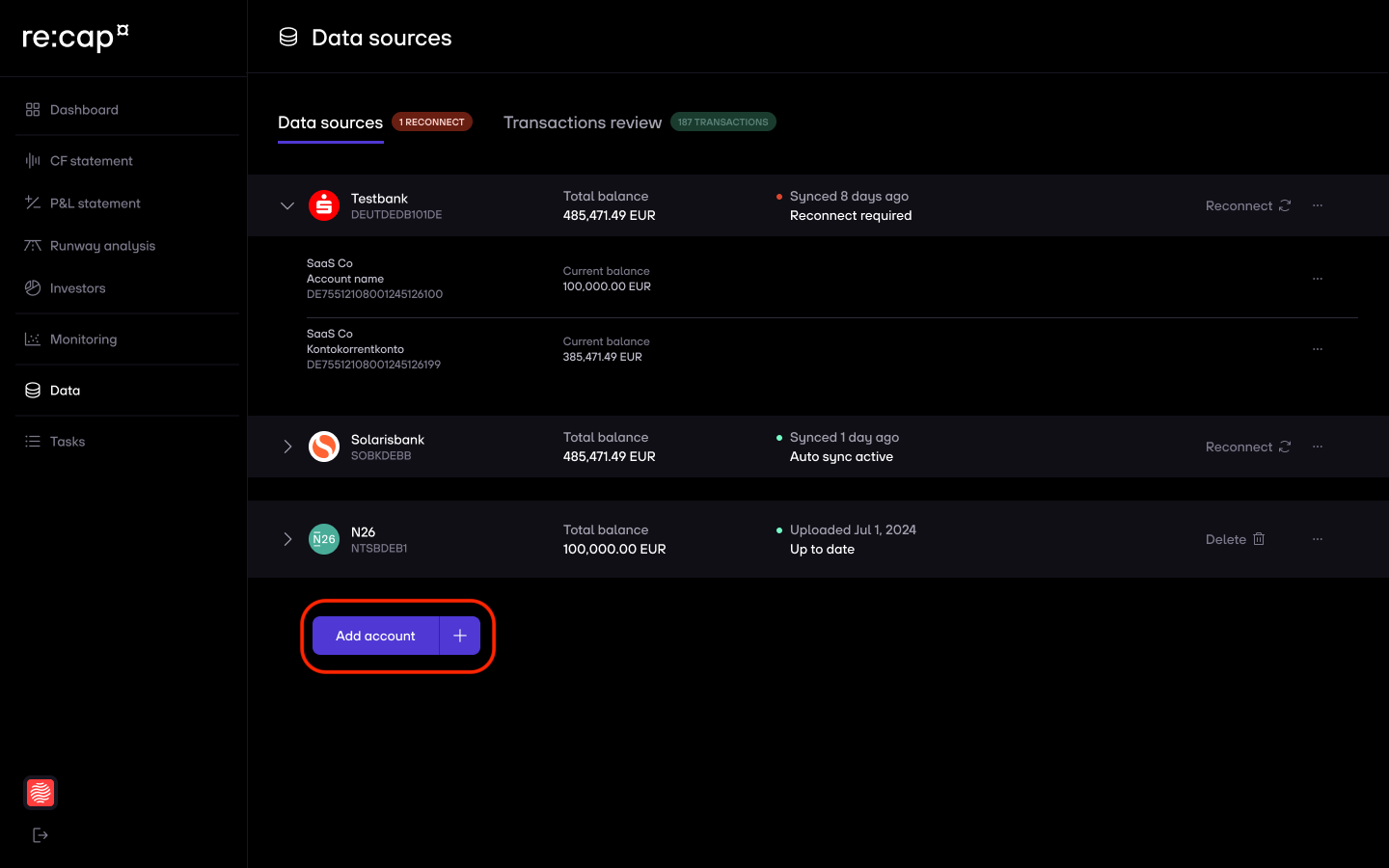
1. Click on Data in the navigation menu and then on Add bank account at the bottom of the screen.
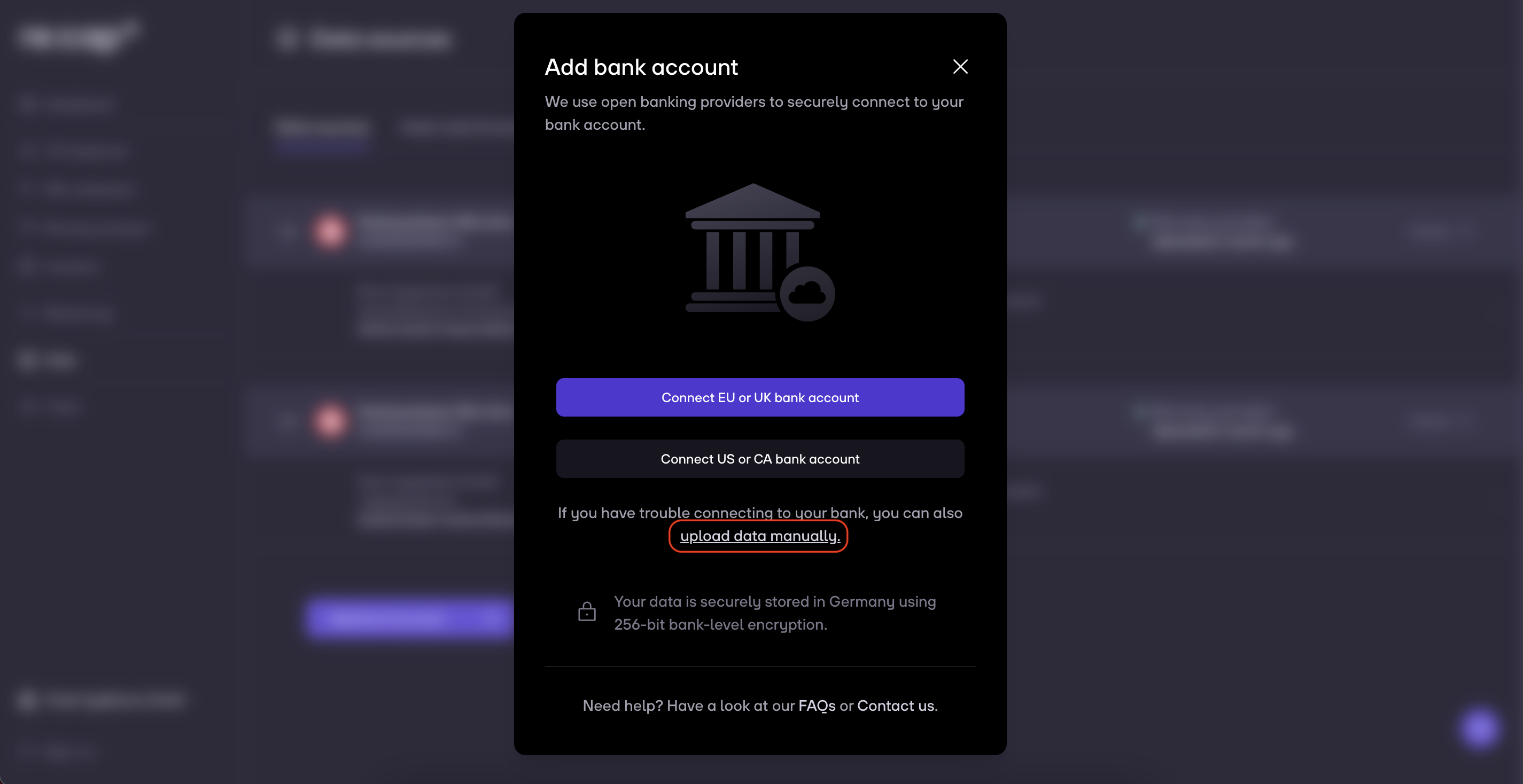
2. Click on Upload data manually.
3. Enter the current account balance and the other account information and then click on Upload transactions next.

4. Select the bank statement you have just downloaded from your bank account by clicking on Browse file.

5. You will get a preview of your uploaded transactions. You have the options to:
6. The columns will be detected automatically. If there is a missing column, you can add it manually.
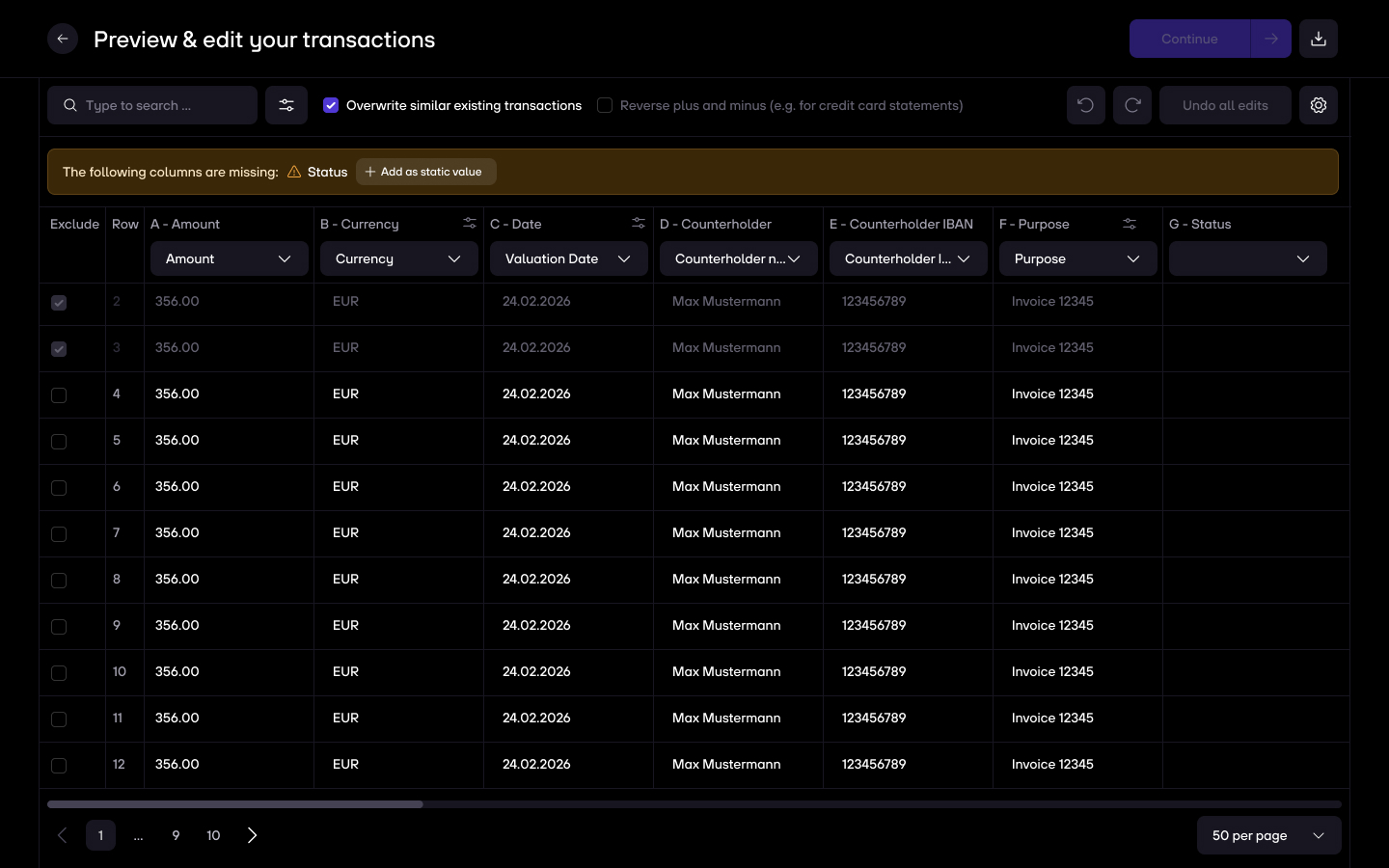
7. You can fix issues by directly clicking & editing inside of a cell.
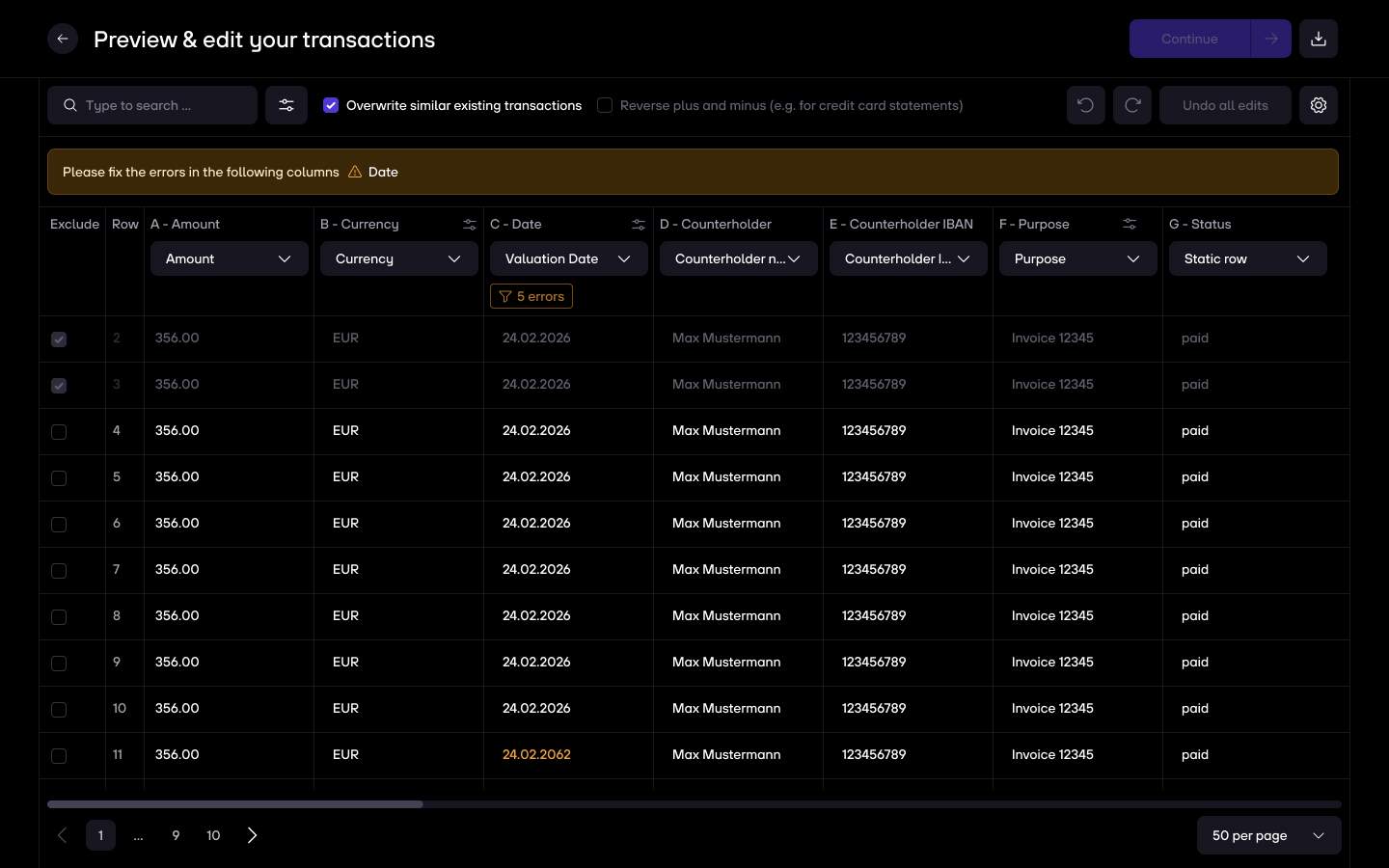
8. If the status bar turns green or gray, you can finish the upload.
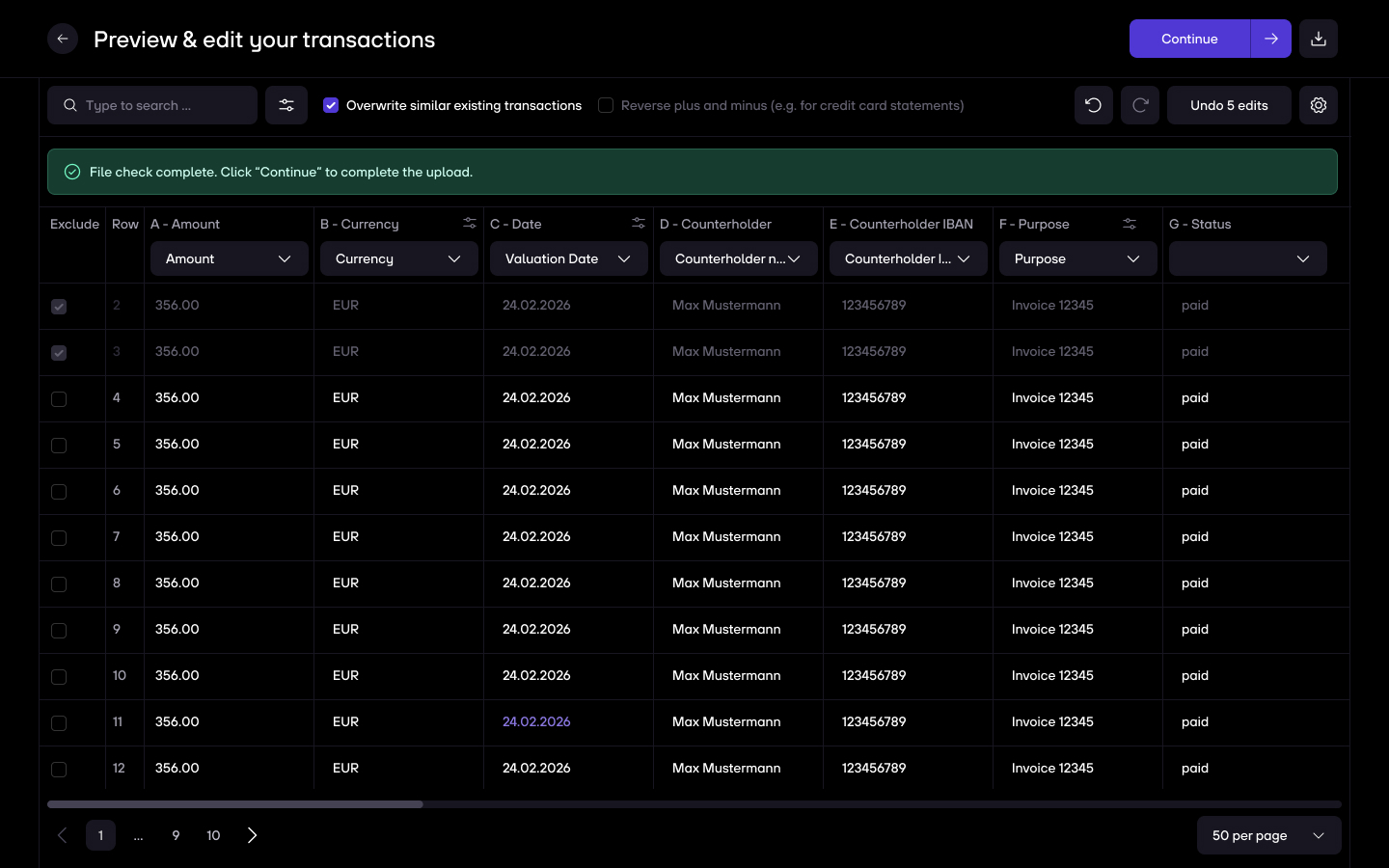
9. Lastly, you will see a preview of your uploaded transactions and bank details.

10. We will then start processing your transactions. You can close the modal while your transactions are being imported. This will take a couple of minutes.

11. Once everything is imported, you can see your manually added bank under Data > Bank accounts > Data sources.

It is also possible to uploading single transactions to your account, for e.g. in these cases:
1. Click on Data > Bank accounts in the navigation menu and then on Add bank account at the bottom of the screen. Then select Single transactions at the top of the modal.

2. Input the required data:
3. Tap on Continue once done. The transaction will now be visible in your list of transactions under Analysis > Cash positioning > Transactions.


.gif)


