
Now live: Capital AI, your financial sparring partner
You might want to use the forecast to compare the plan (Budget) with actuals. This is often done on a monthly forecast. To do so, you need to enable the Budget column and populate it, and then enable the deviation column too.
1. Go to the top right. Click on View to enable Budget and Deviation % columns.
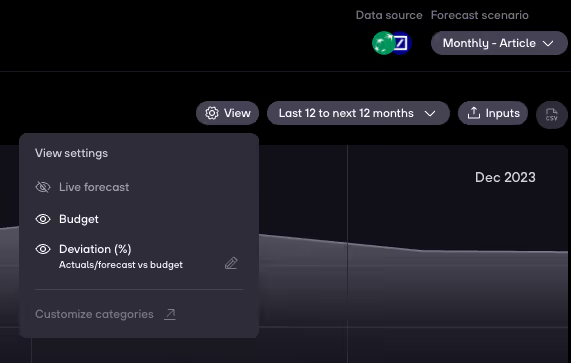
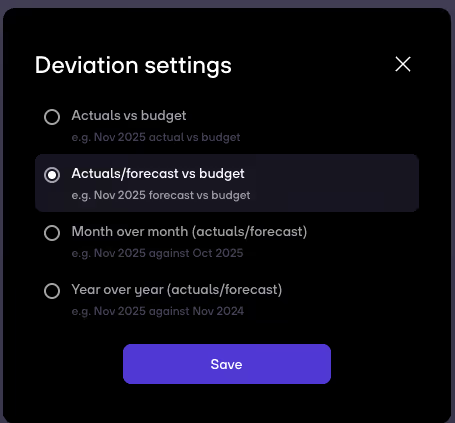
2. For the Deviation, you have a couple of options, but for this purpose you should choose either Actuals vs budget or Actuals/forecast vs budget, the latter in case they want to keep the Forecast column enabled too.
Next step: you need to populate the budget values.
There are three options to add data. You can choose one per category/row:
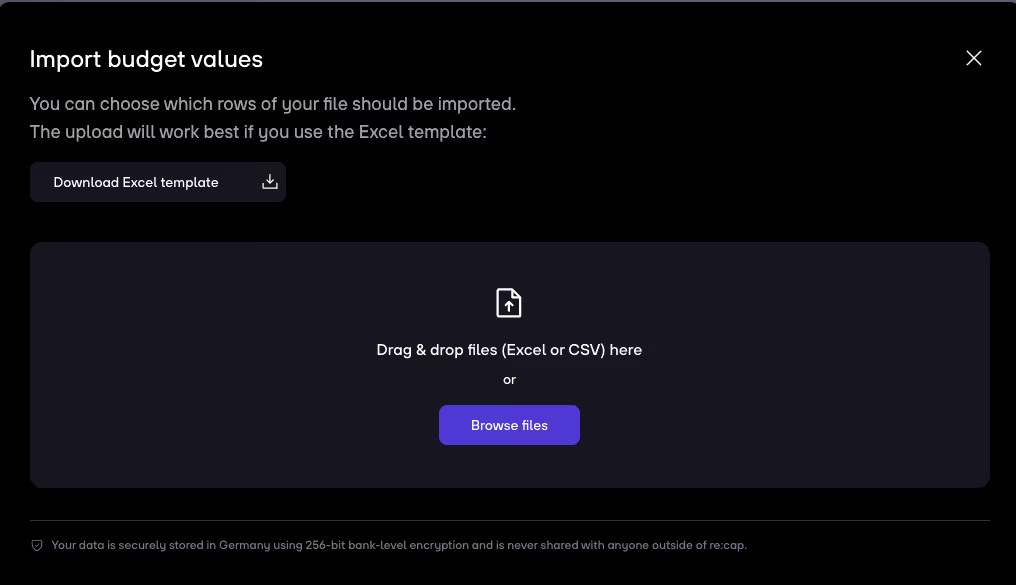
1. Import from Excel via CSV upload.
2. Set a recurring value with a weekly or monthly cadence.
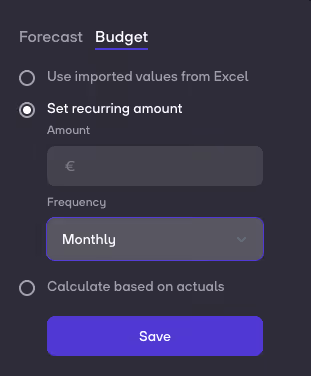
3. Set a static average of Actuals with the option to add a growth rate on top. It never updates unless you refresh the date in which the calculations were done.

To define which calculation method you want per category/row, you can either:
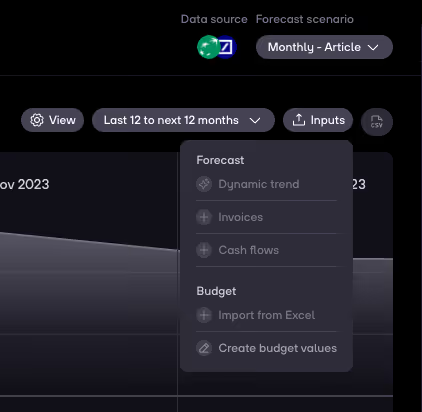
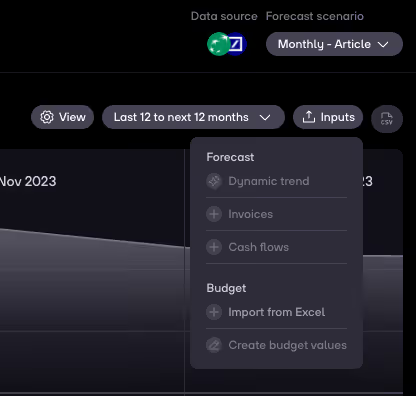
1. Click on Inputs to create budget values and select the best option for each category.
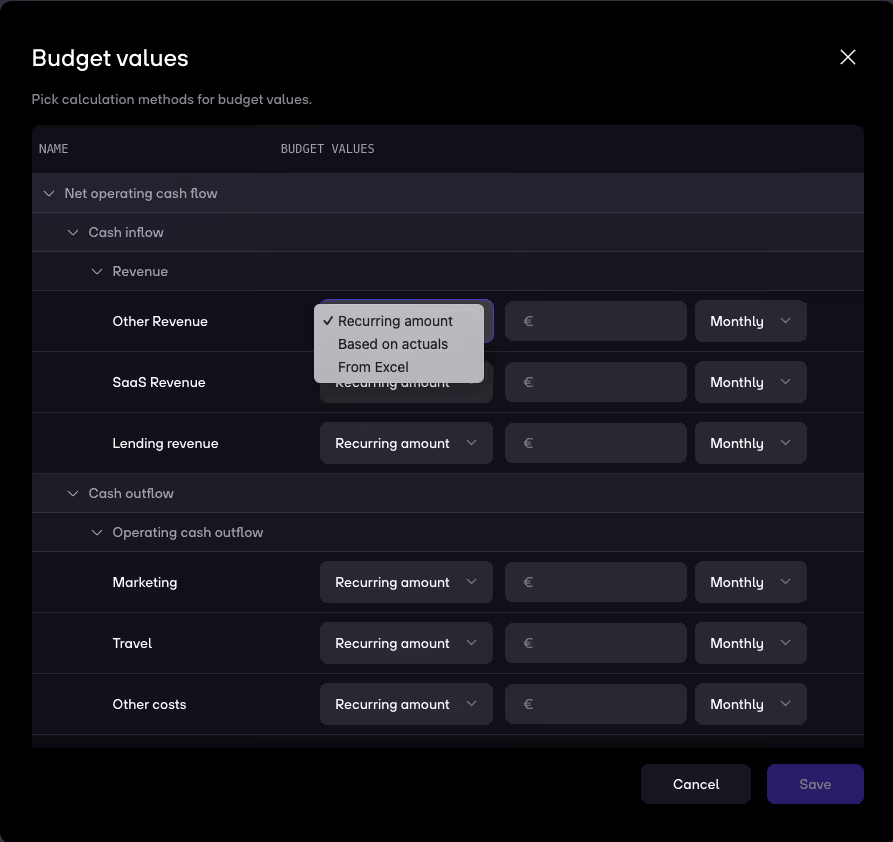
2. Go to a category. Then click on ..., go to Budget and select the option that fits you best.

While Set recurring amounts and Calculate based on actuals can be selected and defined directly here, the Use imported values from Excel can only be selected – but not defined.
1. Instead, you can go click on Inputs, then click on Import from Excel.
2. Now, you can click on Download Excel template to go through the uploading flow to define those values.


.gif)


